Hai reaperfriends! 👋
It's been about two years since I released the Reapertips Theme, and in that time I've made several videos and docs about it. The problem is they're kind of scattered everywhere across YouTube, the forum, discord, PDFs, ect. So I figured it was time to put everything in one place.
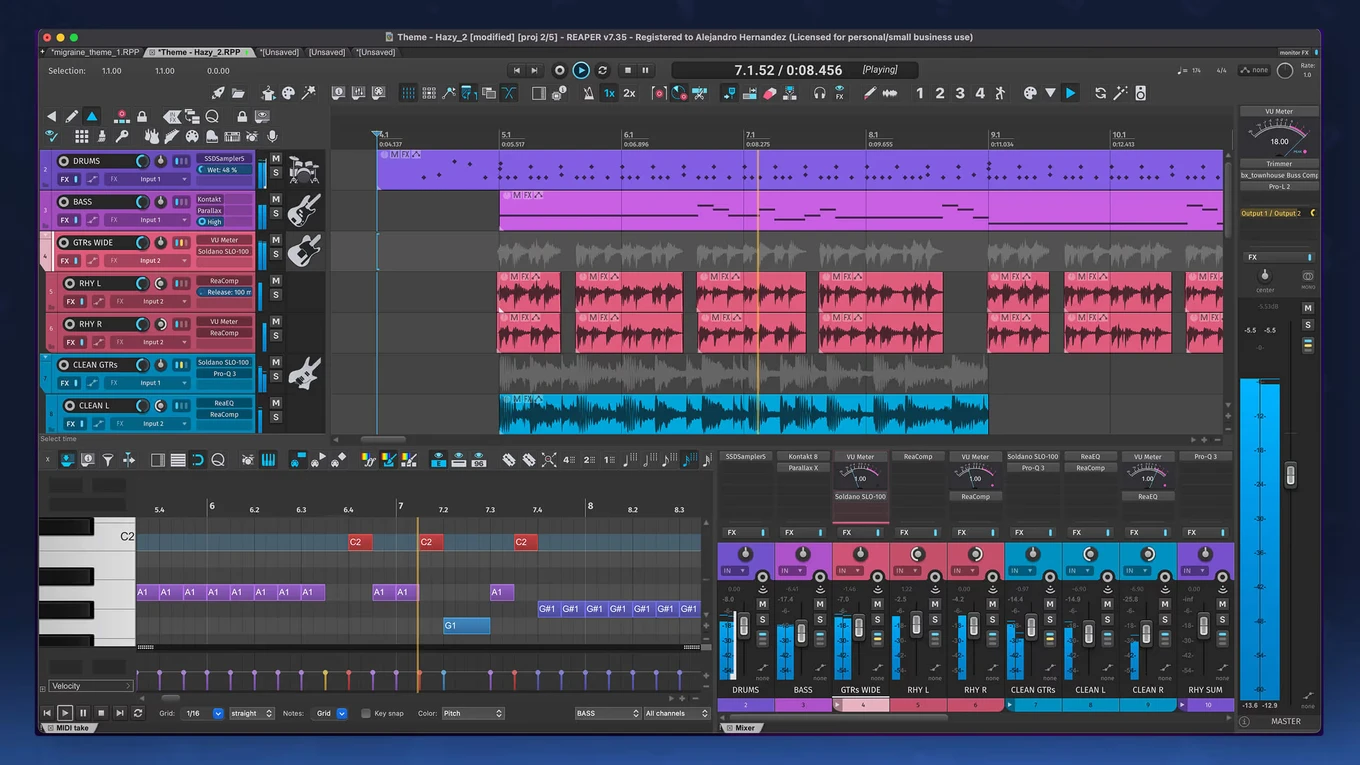
So I will cover everything from the basics of installing it, to common questions people have when they’re getting started, to easy ways to customize the theme, and even more advanced tweaks.
Let’s go! 🚀
📘 In this article:
- How to download and install the theme
- How to update the theme
- Why doesn't my theme look exactly like your videos?
- How do I make FX inserts show in the TCP?
- All my windows have light borders. How do I make them dark like yours?
- Is it possible to show meter numbers in the TCP?
- How do I make folder tracks hide their children when collapsed?
- What are the easy ways to customize the theme?
- Will I lose my color changes when I update?
- How do I get green meters or more traditional-style meters?
- Advanced ways to tweak the theme
- A quick way to switch between light and dark theme
How to download and install the theme
First, get the theme here → Reapertips Theme
Once downloaded,
- Open the 01_Install These Fonts folder and install the three fonts by double-clicking each font file.
- Go to the 02_Theme Folder and find the file called Reapertips Theme.ReaperThemeZip.
- Drag and drop that file into REAPER, or just double-click it to load the theme.
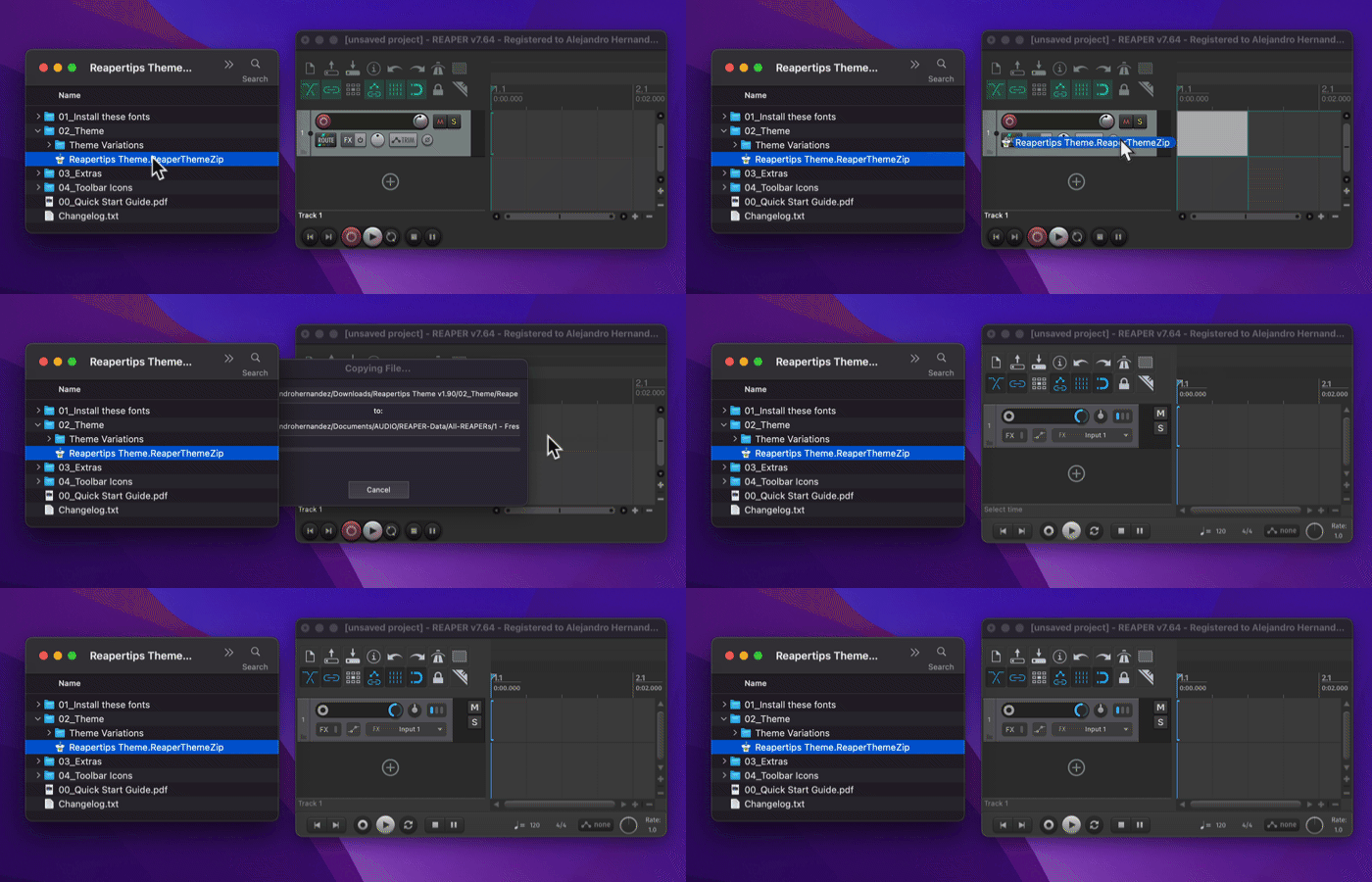
That's it, enjoy! 🎉
Once installed, feel free to check out the included PDF 00_Quick Start Guide.pdf. I compiled a bunch of suggestions to help you customize the look however you want!
How to update the theme
First, you'll need to download the latest version.
Check your email for the original download email you got when you first downloaded the theme. Press Download Now, that should give you the latest version of the theme.
You can do a search for: 👋 Here's your download! contact@payhip.com
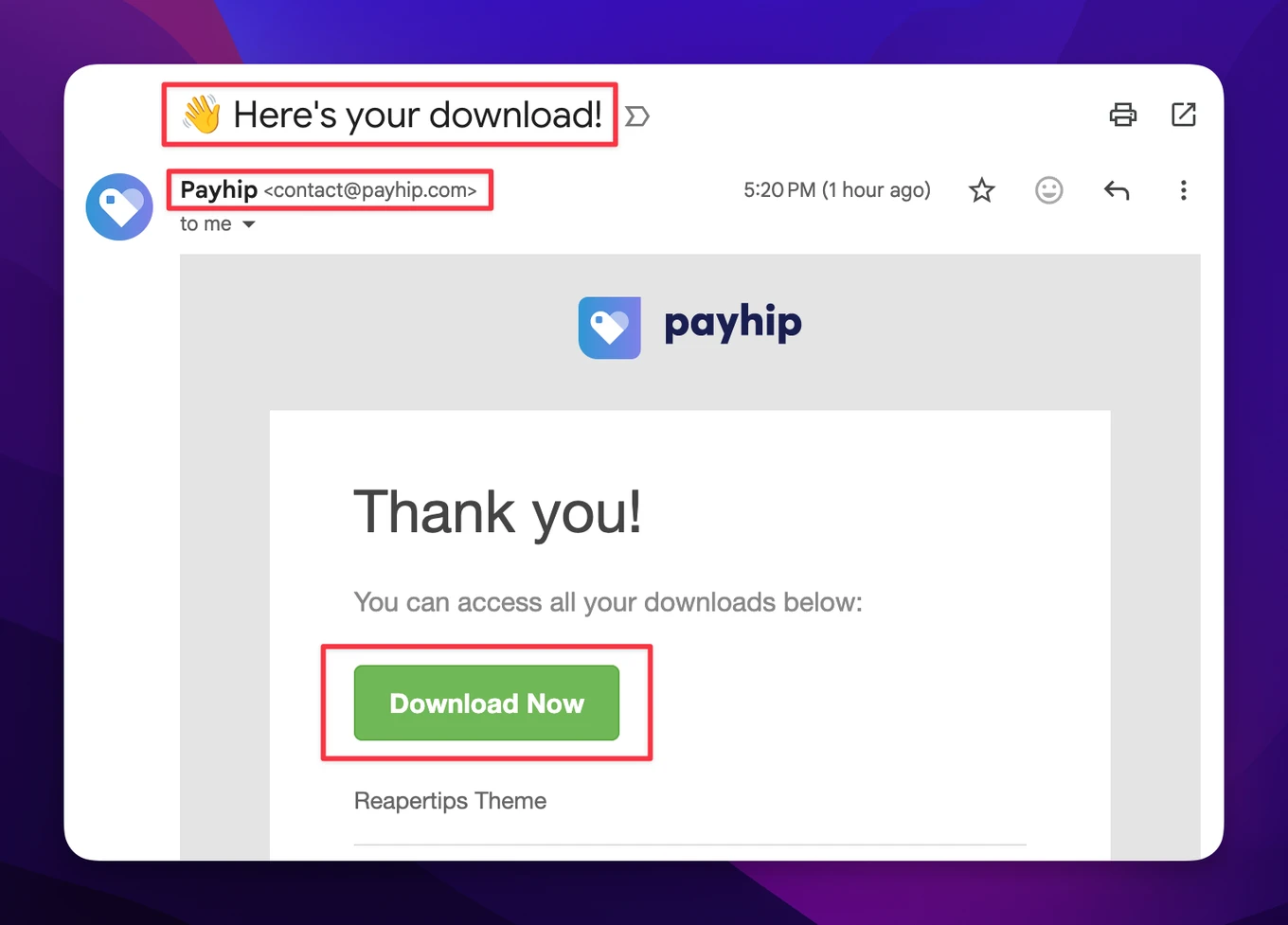
If you can't find it, no worries! Just go through the checkout process again here.
You can enter $0, and you do not need to use a real email address. You can enter something like “aa@aa.com” instead, and you will get a download link right away.
Once you have the file, just follow the same steps as the initial install. Drag the new Reapertips Theme.ReaperThemeZip into REAPER and it will update automatically. Your layouts, Theme Adjuster settings, and everything else will stay intact.
Why doesn't my theme look exactly like your videos?
This is probably the most common question I get! A theme only replaces images. It doesn't change your toolbar layout, transport position, master track location, or anything structural like that. So your REAPER will still look like your REAPER, just with the new visuals applied.
I also get a lot of requests to share my configuration files, and I genuinely don't think it's a good idea. My setup is very specific to my screen dimensions, and my toolbars are packed with custom actions that probably won't be relevant for most people and will most likely just bloat your REAPER configuration. Sharing it would likely cause more confusion than anything.
My real advice is to take this as an opportunity to build your own layout based on your own needs. I know that might sound like more work, but it's actually really rewarding, and REAPER makes it surprisingly easy to set up.
I made a video showing you how to recreate my layout step by step, feel free to follow along!👇
How do I make FX inserts show in the TCP?
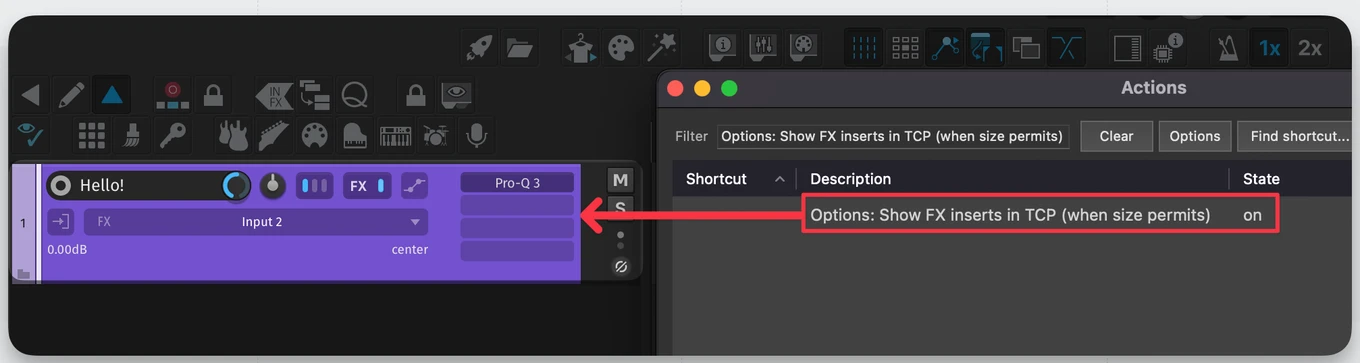
Open the Actions menu (shortcut: ?), search for Options: Show FX inserts in TCP (when size permits) and run it. This toggles the FX list on and off in your TCP. Keep in mind the track needs to be tall enough for it to actually show up.
If you also want to see your sends in the TCP, run Options: Show sends in TCP (when size permits).
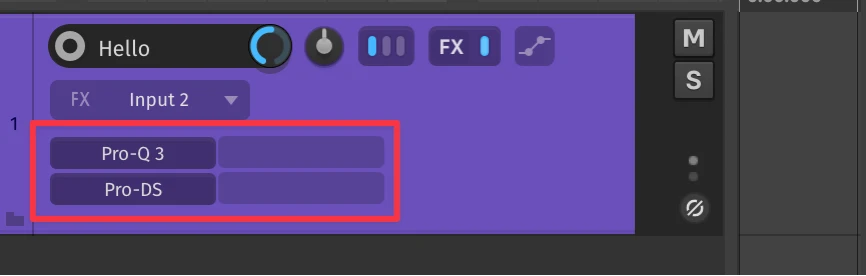
What if I want the FX list at the bottom of the track instead of the side?
Open the Actions menu (?) and search for Script: Default_7.0_theme_adjuster.lua. Go to Theme Controls and disable TCP: Show FX-list on the right side. This will move it to the bottom of the track panel instead.
All my windows have light borders. How do I make them dark like yours?
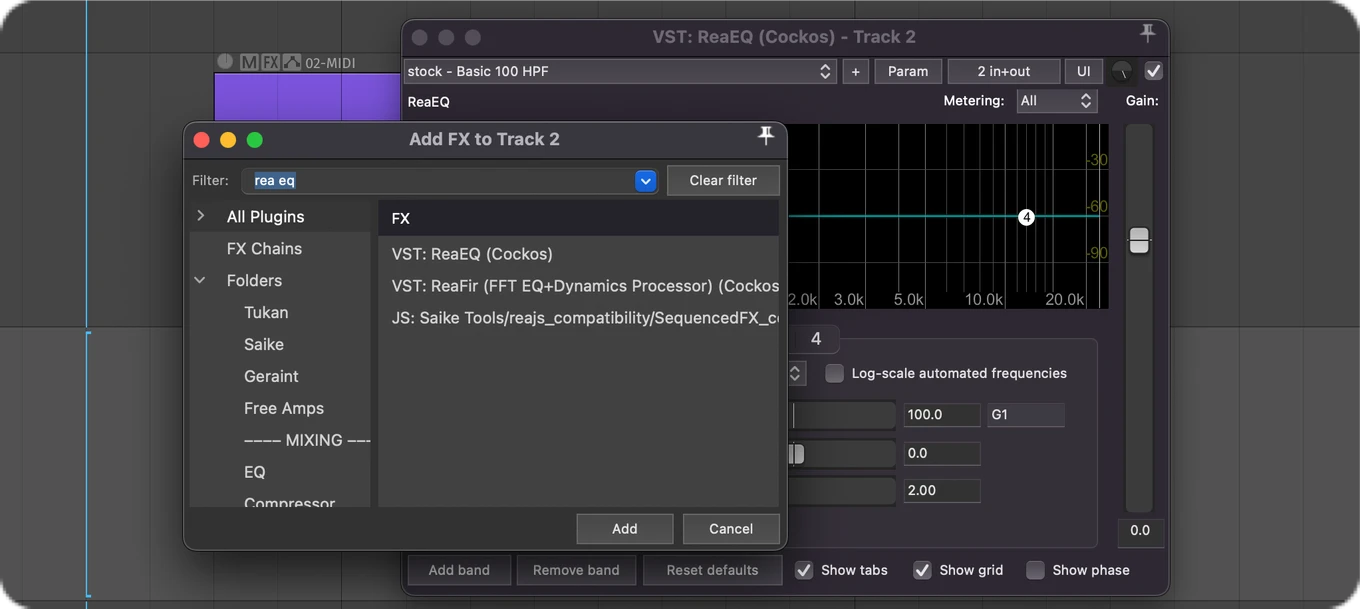
That's because I have my system set to dark mode, which makes all windows and buttons match the theme. Whether you can do this depends on your OS:
On macOS: Go to Options > Settings (or shortcut ? ) then General > Advanced UI/system tweaks and enable Allow 10.14+ dark mode if enabled (may cause display issues with some plug-ins). Restart REAPER and your windows will look much more cohesive with the theme.
On Windows: Unfortunately, this isn’t natively possible in REAPER. There are some system-level workarounds out there like this one, but I’m not very familiar with how they work. Feel free to try it out. A lot of people seem to love it!
Worth noting: I included a version of the theme with lighter menus in the themes folder. It won't give you the full dark window effect, but it makes everything look a lot less jarring if you're on Windows.
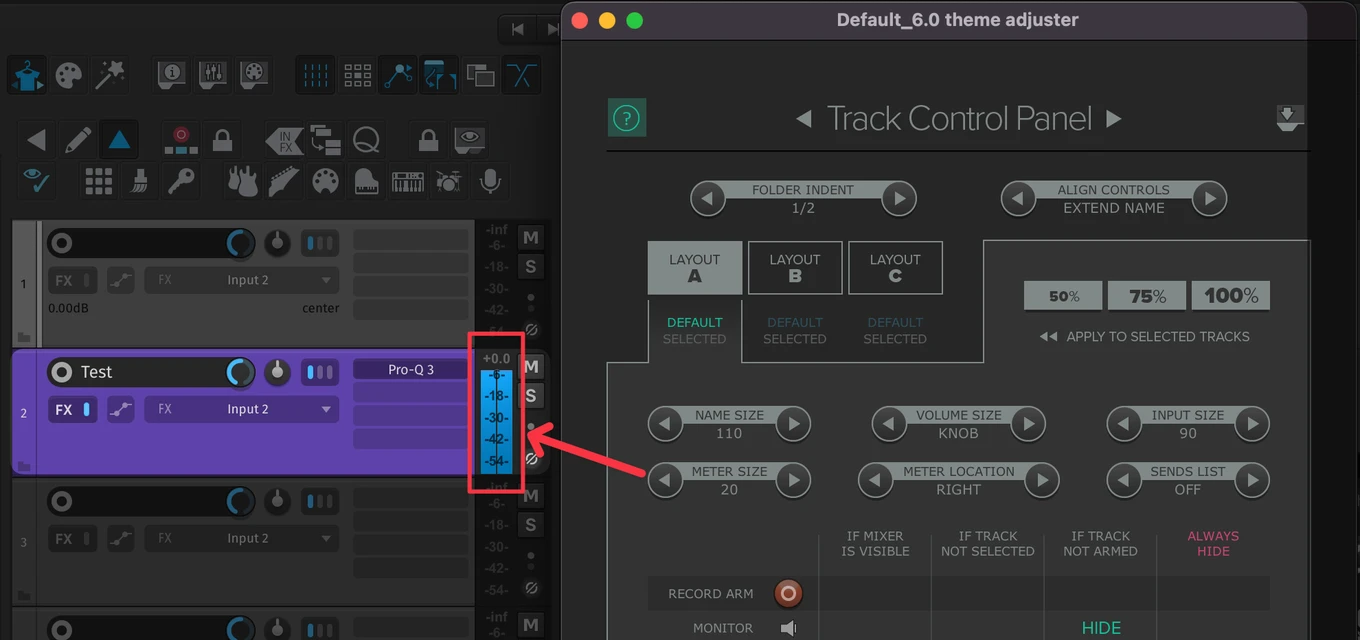
Is it possible to show meter numbers in the TCP?
Yes! Here's how:
- Open the Actions menu (?) and search for Options: Show theme adjuster.
- In the Theme Adjuster, go to the Track Control Panel section, make sure you're on Layout A, and increase the meter size. Once it hits at least 20, the meter numbers will start showing up.
How do I make folder tracks hide their children when collapsed?
By default, REAPER doesn't completely hide child tracks when you collapse a folder. It just makes them smaller, which I'm not a fan of either.
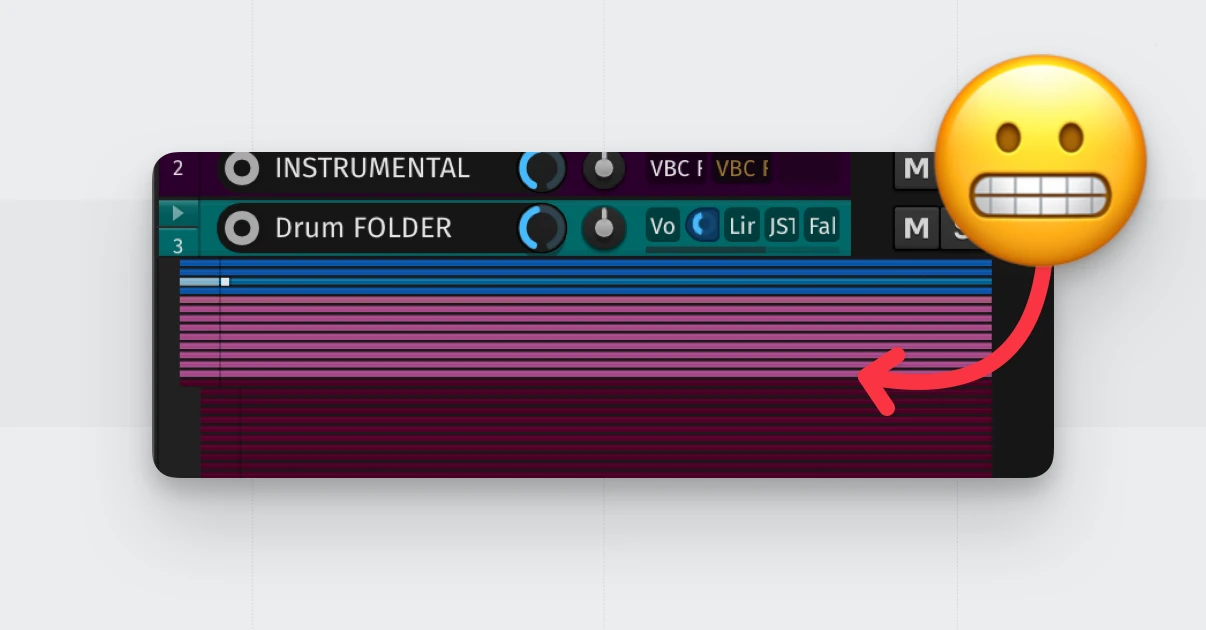
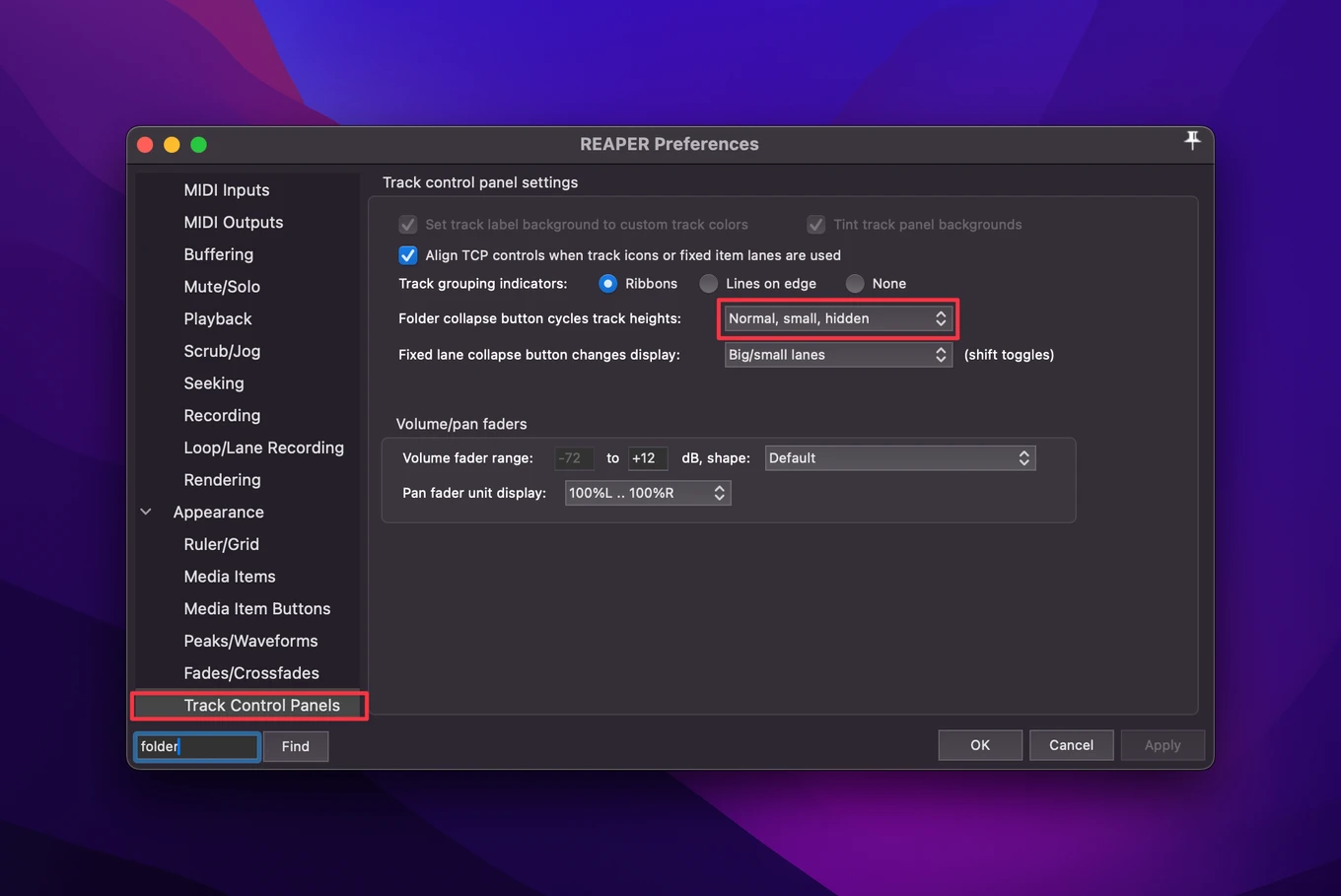
To fix this, go to Preferences > Track Control Panels and find Folder collapse button cycles track heights. I like to set it to Normal, Small, and Hidden. That way, when you fully collapse a folder, the child tracks disappear completely instead of just shrinking.
What are the easy ways to customize the theme?
There are four main ways to customize things, ranging from simple preference changes to more hands-on tweaks.
1. Preferences tweaks
The simplest starting point. I included a list of suggested settings in the included PDF 00_Quick Start Guide.PDF that comes with the theme download. Worth going through those before anything else!
2. The v6 Theme Adjuster
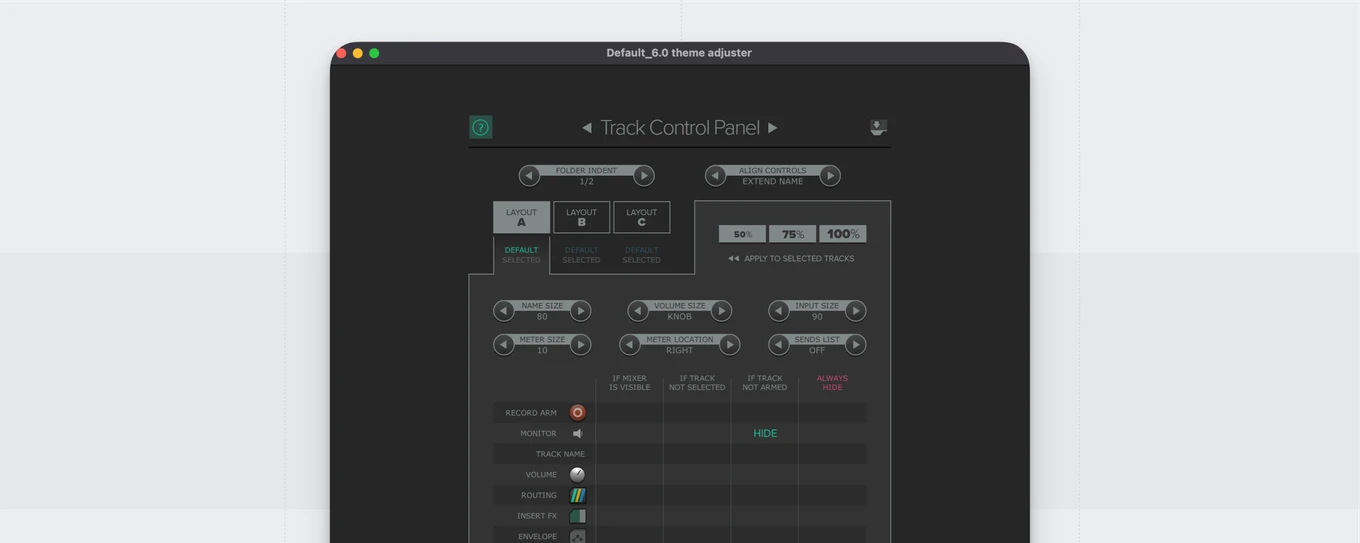
Open the Actions menu (?) and search for Options: Show theme adjuster. From here you can show or hide buttons, change layouts and sizes, and adjust the overall contrast and brightness of the theme. It's a good place to start if you want to make some quick visual changes without going too deep.
3. The v7 Theme Adjuster
This one requires REAPER v7.0 or later. Open the Actions menu (?) and search for Script: Default_7.0_theme_adjuster.lua. Under the Theme Controls page you'll find a long list of settings to explore.
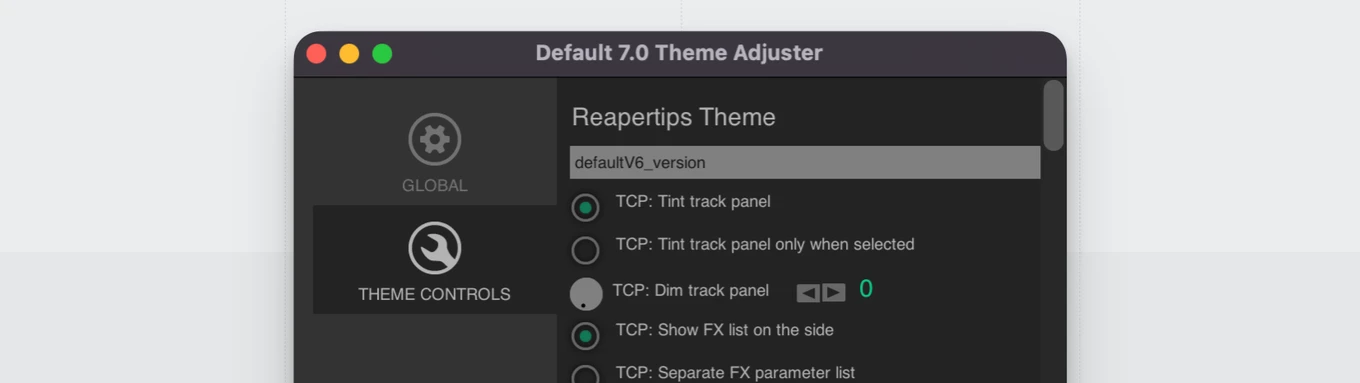
It can look like a lot at first, but don't let it intimidate you. You can always reset everything by scrolling to the bottom and hitting the reset button, or double-click any individual knob to reset just that one parameter.
A few settings I especially recommend checking out:
- TCP: Dim track panel - This will dim the background color of tracks and leaving the accent on the side strong!
- TCP: Show folder indicator - shows a folder icon instead of the record button on folder tracks, which makes it a lot easier to tell them apart at a glance
- TCP: Move FX / IO Buttons to the side - moves those buttons to the side of the track panel. If you also want the IO button there, enable TCP: Separate sends list and make sure sends are visible in the TCP by right-clicking an empty area in the TCP.
Feel free to explore the rest of the settings too. There's a lot in there!
4. Theme Tweak
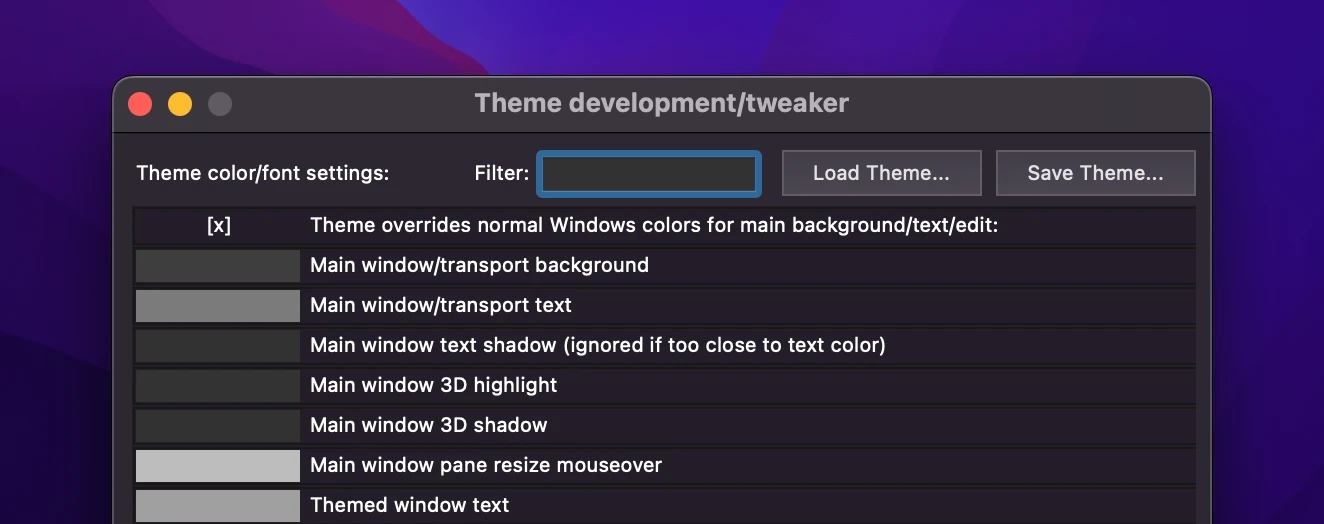
For deeper color and font changes, open the Actions menu (?) and search for Theme development: Show theme tweak/configuration window. This lets you adjust things like grid line colors, waveform and peak colors, and a lot more.
Will I lose my color changes when I update?
If you made changes via Theme development: Show theme tweak/configuration window and saved them as a new custom theme, you won't lose them when you update. You can load the new .ReaperThemeZip and then reload your custom theme on top of it. You'll get all the new images and features from the update while keeping your color changes.
The catch is that if I made my own color tweaks to the new update, your custom colors will override those. So you might miss out on some of my changes!
My recommendation is to keep a note of your color changes and reapply them manually after each update. It's a bit inconvenient, I know, but it's the most reliable way to handle it.
I made a video walking through this whole process in more detail: www.youtube.com/watch?v=ijayIaUaQpw
How do I get green meters or more traditional-style meters?
This one isn’t too straight forward (I’m sorry!). You will need to unpack the theme, swap out the meter images, and repack it. I suggest finding a theme with meters you like, then replacing the Reapertips Theme meters with those.
But no worries! I made a video showing the full process here, slowly and step by step, so you can follow along 👇
By the way, these same steps apply to any kind of image modding for this theme and any other REAPER theme!
Advanced ways to tweak the theme
Inside the 03_Extras folder you'll find a set of alternative images you can swap into the theme to change specific elements. This process is a bit more advanced, but I put together a full step-by-step guide to walk you through it. It’s the same steps as the video from the previous section but a little less slow 👍💡
A few important things to keep in mind before you start:
- Always back up the original images before replacing anything. This makes it easy to undo if something doesn't look right.
- Match your display scaling. The 100% scaling images go in the root folder, 150% images go in the 150 folder, and 200% images go in the 200 folder. Using the wrong scaling will make things look blurry or off.
A quick way to switch between light and dark theme
I made a video showing how to switch to any REAPER theme right from your toolbar, plus a cool way to create a toggle that switches between the dark and light versions of the theme.
Check it out 👇
That’s it! – If I missed anything, please let me know. Always happy to help and I hope you are enjoying the theme 💙